FrogSeq
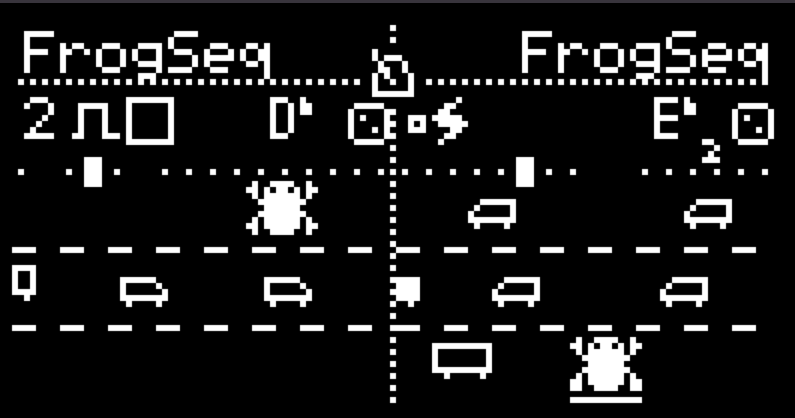
FrogSeq is a generative note sequencer inspired by Frogger. Move the frog through three lanes of traffic, where collisions create musical events by changing notes, toggling gates, or triggering ratchets. The frog never dies — getting hit is part of the music.
I/O
| 1/3 | 2/4 | |
|---|---|---|
| TRIGs | Clock | Restore |
| CV INs | Frog X | Frog Y |
| OUTs | Pitch CV | Trigger |
Main Page
The main page displays the frog, a safe zone, three lanes of traffic, the current note, and the 16-step sequence indicators.
- Modifier Display: The Safe zone displays temporary feedback when a collision modifies the sequence, as well as ratchet activity.
- Frog: Switch between horizontal and vertical movement when controlling the frog.
- Note Seq Dispay: Displays the current note. Click here to change the quantizer. Aux Button will give you access to the Q-Engine
- Random icon: Randomizes the note sequence.
- 16-step indicators: Show the state of each step. The highlighted step indicates the current playback step, a single pixel indicates an unmuted step, and no marker indicates a muted step.
- Move the cursor past Random to access the Note Seq page.
Understanding the Modifier Display
When a collision modifies a sequence step, the Safe zone briefly displays the affected step number, the modifier icon, and its value or state.
- Step number: Identifies the sequence step affected by the collision.
- Note icon: Indicates a Note modifier. The displayed number shows the semitone and octave interval. An inverted number indicates a negative interval. The Octave icon has two positions, high and low. The position represents how the octave sits relative to 0V.
- Gate icon: Indicates a Gate modifier. The checked or unchecked icon shows the resulting gate state.
- Ratchet display: Small squares indicate the remaining ratchet hits. The ZAP icon marks a ratchet hit as it occurs.
Collision feedback disappears after a short time.
Note Sequencer Page
The Note Seq page contains a 16-step note sequencer and settings for all three traffic lanes.
Sequence steps
- Select a step to edit its note.
- Steps can be muted or unmuted.
- Each step’s bar represents its note value.
- The arrow indicates the current playback step, while the frame indicates the step selected by the cursor.
- The entire length of the sequence can be adjusted from 1-16 steps.
Traffic lanes
Each lane has three settings:
- Direction: Sets the direction of traffic.
- Speed: Selects
/2,x1,x2,x3, orx4. - Flow: Adjusts traffic flow for that lane.
Different lane settings create different collision patterns and rhythmic variations.
Full-Screen View
FrogSeq includes a full-screen view with an expanded display and additional room for the frog and traffic. The wider layout makes it easier to follow traffic movement and observe collisions while the sequence plays.
Collisions
Collisions between the frog and traffic generate musical events.
- Cars: Changes the affected step’s note by a random semitone interval. If the step is muted, a Note collision unmutes it.
- Inverted Cars: Toggles the affected step’s mute state.
- Bus: Repeats a captured note to create a ratchet effect. The number and timing of repeats depend on the traffic lane’s speed.
Sequence Storage
FrogSeq provides eight sequence slots. The sequence menu supports Load, Write, and Init operations. These options are accessed through the Aux Button function while the entire sequence is highlighted.
Persistence
A System Save is required for sequence slots to persist through a power cycle.
Credits
Authored by Benjamin AM as a joke inspired by beau-seidon’s need for a companion applet to his Joystyk.